Help topics
Paying for My Skyro Loans
Product Loan
- What is a Skyro Product Loan?
- How do I apply for a Skyro Product Loan?
- Where can I use my Skyro Product Loan?
- Product Loan payments and fees
- Product Loan application status
- What is Skyro Flexi?
- What is the Skyro Zero Plan?
- Add-ons and Protection
- Got questions about Skyro Product Loan, boss?
- What items can I buy with a Skyro Product Loan?
SkyroCredit
- What is SkyroCredit?
- How to use SkyroCredit
- Refer and Earn
- Cash out
- QR Ph payments with SkyroCredit
- Credit limit
- Payments
- Billing cycles and statements
- Interest rates and fees
- Cashback in SkyroCredit
- Using SkyroPondo for SkyroCredit
- SkyroCredit application status
- Payment issues with SkyroCredit
- Got questions about SkyroCredit, boss?
How to pay for my Skyro loan?
Paying for your Skyro loan
There are 2 ways to pay for your Product Loan, Cash Loan, or SkyroCredit:
1. Online
2. Over-the-counter.
Find out how each one works below, or visit our How to Pay page, boss!
How to check your due date
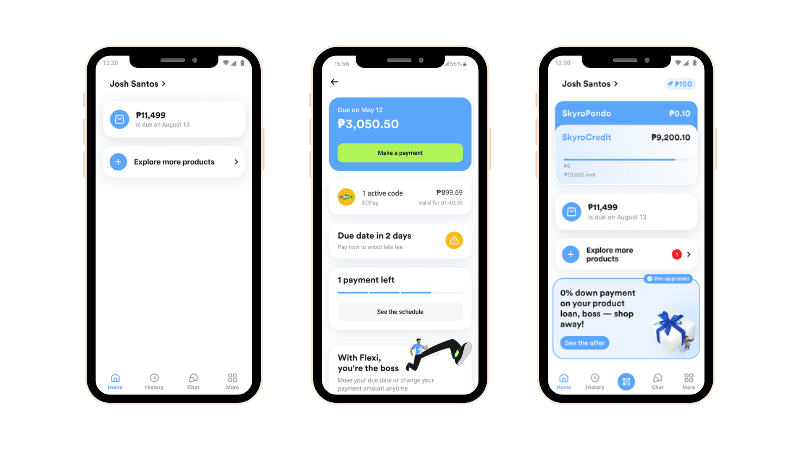
You can check your due date on the home screen of your Skyro app, boss.
To see this in the app:
- Tap your Product Loan, Cash Loan, or SkyroCredit
- Check the due date and amount
Online payments
Skip the lines and pay in just a few taps, boss! Pay your Skyro loan online anytime, anywhere. You have 5 options: SkyroPondo, QR Ph, online banking, e-wallet, or Bills Payment in other payment apps.
QR Ph
To pay using QR Ph in the Skyro app, follow these steps:
- Tap ‘Cash in,' and choose QR Ph.
- Generate your QR Ph code and save the image to your device.
- Upload the saved QR Ph image in your chosen online banking or e-wallet app to complete your loan payment.
*You can also send the QR Ph image to a friend or loved one to pay for you.
SkyroPondo
To pay using SkyroPondo in the Skyro app, you’ll need to add money to SkyroPondo first. There are 2 ways to use SkyroPondo for payments: automatic or manual:
Automatic
Use SkyroPondo to automatically pay for your Skyro Product Loans, Cash Loans, or SkyroCredit minimum payment. Add money to it anytime, so you're ready when it's time to pay for your loans.
Follow these steps below to cash in to SkyroPondo:
- Open the Skyro app and tap on ‘SkyroPondo’ from the home screen.
- Tap ‘Cash in’ and choose where you want to get money from — like QR Ph, GCash, BPI, Maya, or over-the-counter options.
- Enter the amount and confirm.
- Congrats! Your SkyroPondo is now ready. 5 days before your due date, we’ll automatically use your SkyroPondo balance to pay your product or Cash Loan monthly payment. For SkyroCredit, SkyroPondo will cover only the minimum payment.
Manual
Use SkyroPondo to manually transfer money from your account to pay your loans anytime. This works for advance payments, full early repayment, and interest-free payments for SkyroCredit. Just keep enough funds in your SkyroPondo.
Follow these steps below to transfer money from SkyroPondo to your Product Loan, Cash Loan, or SkyroCredit:
- Open the Skyro app and select your loan on the home screen.
- Tap "Make a payment" and choose SkyroPondo.
- Confirm the amount to complete your payment.
If your SkyroPondo balance is lower than the amount due, you'll see a message. - Once you see the confirmation screen, your payment is complete.
Online banking
To pay using online banking in the Skyro app, follow these steps:
- Tap ‘Cash in’ and choose from BPI, BDO, UnionBank, or RCBC.
- Enter the amount you want to pay. Just keep in mind that your bank may charge an additional fee.
- After you confirm the amount, a browser will open where you need to log in to your online bank account. You will also get an OTP on your phone which you will need for verification.
- Tap ‘Submit’,' and your loan payment is complete!
E-wallet
To pay using an e-wallet in the Skyro app, follow these steps:
- Tap 'Cash in,' from the home screen and choose from GCash, Maya, GrabPay, PalawanPay, Coins.ph, or ShopeePay.
- Enter the amount you want to pay.
- After you confirm the amount, a browser will open where you need to log in to your e-wallet account. You will also get an OTP on your phone which you will need for verification
- Tap ‘Submit’, and your loan payment is complete!
Bills Payment in payment apps
GCash Bills Payment
To pay through GCash Bills Payment” follow these steps:
- Open the GCash app and tap on “Bills” from the home screen
- Choose Skyro from the biller list
- Enter your details and confirm the payment.
- Amount to pay
- Registered mobile number in the Skyro app
- Full name
- Email address (optional) - Save your GCash confirmation receipt as proof of payment for future reference.
* A ₱20 fee applies per transaction.
Note: If you have 2 or more Skyro loans, the money will go to your SkyroPondo. Please remember to manually pay your loan in the Skyro app after, boss!
PalawanPay Bills Payment
To pay through the PalawanPay app, follow these steps:
- Open the PalawanPay app and tap on “Pay Bills” from the home screen
- Choose Skyro from the biller list
- Enter your details and confirm the payment.
- Amount to pay
- Registered mobile number in the Skyro app
- Full name
- Email address (optional) - Save your PalawanPay confirmation receipt as proof of payment for future reference.
Note: If you have 2 or more Skyro loans, the money will go to your SkyroPondo. Please remember to manually pay your loan in the Skyro app after, boss!
CLiQQ Bills Payment
To pay through CLiQQ Bills Payment, follow these steps:
- Open the CLiQQ app and tap on “Pay Bills” from the home screen
- Choose SKYRO (ECPAY) from the biller list
- Enter your details and confirm the payment
- Amount to pay
- Registered mobile number in the Skyro app
- Full name - Show the cashier your CLiQQ receipt and pay the total amount due
* A ₱20 fee applies per transaction.
Note: If you have 2 or more Skyro loans, the money will go to your SkyroPondo. Please remember to manually pay your loan in the Skyro app after, boss!
Over-the-counter payments
To pay for your Skyro loan offline, go to any of our over-the-counter payment partners.
You can pay at 7-Eleven, CLiQQ, Cebuana Lhuillier, ECPay, M Lhuillier, Palawan Pawnshop or Palawan Express, The SM Store, Bayad Center, DA5, eTap, ExpressPay, Posible, or TrueMoney. You can also pay at our ECPay partners, like Prince Supermarket, LCC, and others.
Option 1: Pay using your Skyro mobile number
- Go to any partner branch of Palawan Pawnshop, Palawan Express, and ECPay
- Fill out the payment form
Biller name: Skyro
Account number: Skyro-registered mobile number
Full Name
Amount
Contact Number - Pay the full amount in cash, including the fee
- Keep your receipt safe as proof of payment
Option 2: Pay using a barcode from the Skyro app
- Before going to the counter, generate a barcode in the Skyro app first.
- Show the cashier your barcode or reference number, biller name. and total amount (with fee).
You can pay at 7-Eleven in two ways - through the cashier and CLIQQ machine - If through cashier, choose Xendit as the biller name.
- If through CLIQQ kiosk, choose biller SKYRO.
For other payment partners, just choose PayExpress Loans, Xendit, or Dragonpay as the biller name. - Pay the full amount in cash, including the fee.
- Keep your receipt safe as proof of payment.